Video is the dominant content format online. SellersCommerce reported that over 3 billion internet users watch streaming or downloaded video at least once per month, with 92.3% of internet users watching videos weekly. Yet most creators and marketing teams still spend more time editing than creating. AI video editing tools close that gap.
This guide covers how AI video editing works, the three main editing approaches, what to look for in a tool, and how to edit video with AI using ChatCut.
Key Takeaways
- AI video editing automates repetitive post-production tasks like cutting, captioning, color correction, and reformatting.
- There are three main editing approaches: prompt-based editing, transcript editing, and AI timeline editing. Each suits a different content type and workflow.
- ChatCut supports macOS, Windows, and desktop browsers, with an Agent Plugin for supported desktop agent apps.
- Agent mode in ChatCut handles multi-step editing workflows autonomously. You upload, brief the agent, and review the output.
- AI editing tools work best on clean, well-lit footage. Input quality directly determines output quality.
- For professional productions, AI and traditional NLE tools like Adobe Premiere or DaVinci Resolve work best together, not in isolation.
What Is AI Video Editing?
AI video editing is the use of artificial intelligence to perform, assist with, or automate video editing tasks. These tasks usually include cutting silence, generating subtitles, adding transitions, color grading, and scene and audio enhancement.
Typically, traditional video editing involves:
- Manual timeline editing
- Working through the footage frame by frame
While an AI video editor:
- Analyzes footage, recognizes speech, and isolates noise automatically
- Executes edits based on instructions or pre-trained models
- Doesn’t require the editor to touch every frame manually
However, this does not eliminate the need for a human editor but changes what the editor spends time on. Human judgment is still needed for narrative decisions, pacing, and tone, and contextual understanding a model cannot infer from the footage itself.
In a December 2025 Adobe Express survey, 71% of 384 US video creators said they had used AI video generation or editing tools. The report was published in March 2026.
Who uses AI video editing software?
Generally, AI video editing software is used by people who are looking to speed up their manual editing process. These may include:
- Content creators who need to edit videos faster and publish more content consistently.
- Social media managers who create platform-ready videos for campaigns, promotions, and daily content schedules.
- Marketing teams that produce branded videos at scale for advertising, product launches, and customer engagement.
- YouTubers who want to automate repetitive tasks such as trimming clips, generating captions, and enhancing audio.
- Small business owners who need professional-quality videos without hiring a dedicated editor or production team.
- Educators who create instructional videos, online courses, tutorials, and presentation content.
- Documentary filmmakers who need help organizing footage, generating rough cuts, and streamlining post-production workflows.
The entry point is low. You do not need a background in post-production editing or experience with an NLE (Non-Linear Editor) to produce and edit video with AI. An NLE is video editing software that gives you direct access to any frame in a clip at any point during the edit, without touching the original source files.
How AI Video Editing Works
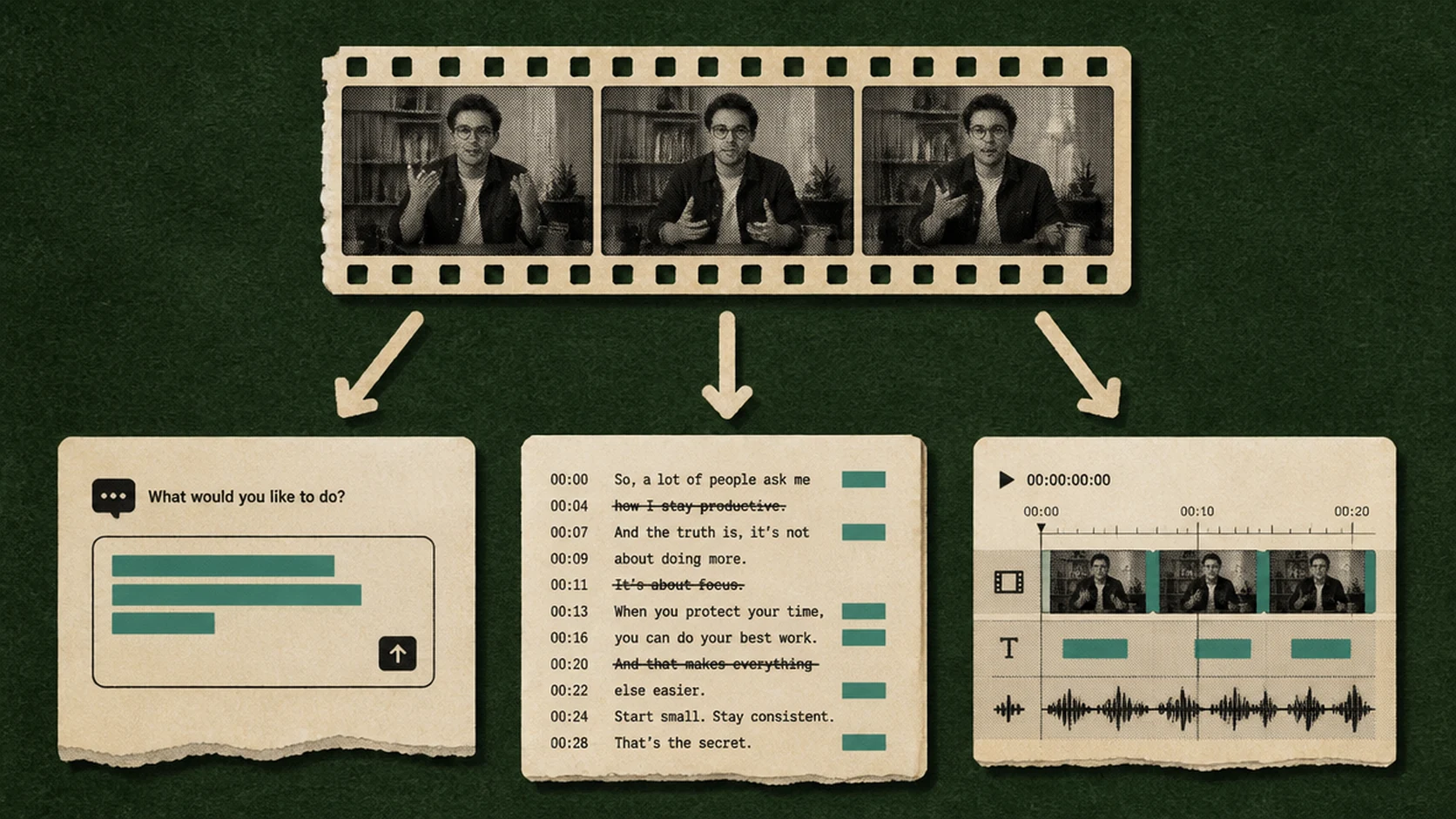
AI video editing software uses computer vision and machine learning models trained on large datasets of footage, audio, and text. When you upload a video, the AI analyzes it at the frame level and maps the structure of the content.
From there, it executes edits automatically and responds to video editing prompts. The model does not understand the video the way a human editor does. It interprets prompts. When those prompts are well-defined and detailed, the results are highly accurate.
The Three Editing Approaches
Most AI video editing tools work through one of three approaches, and most modern platforms support more than one.
Prompt-based editing
You type an instruction and the AI executes it. “Remove all silences.” “Add subtitles in white text.” “Cut to 60 seconds.” The model interprets the instruction, processes the footage, and edits the video. This approach works best for quick edits, content repurposing, and users who want results without working through a timeline manually.
Transcript editing
The AI generates a text transcript of the video. You edit the transcript like a document such as deleting words or sentences, and the corresponding video footage is edited automatically. Transcript editing works best for editing talking-head content, interviews, podcasts, and any video where the spoken word or narration matters most for structure.
AI timeline editing
It is the traditional NLE (non-linear editor) experience coupled with a built-in AI layer. You still work on a timeline, but the AI handles repetitive tasks like auto-cutting, silence removal, scene detection, and color grading. Best for editors who want full creative control with AI handling the mechanical work.
AI Agents in Video Editing
The most recent development in AI video editing is agentic editing, where the AI handles multi-step editing tasks autonomously without requiring input at each stage. You give an instruction, the agent works through the footage, and returns a completed edit.
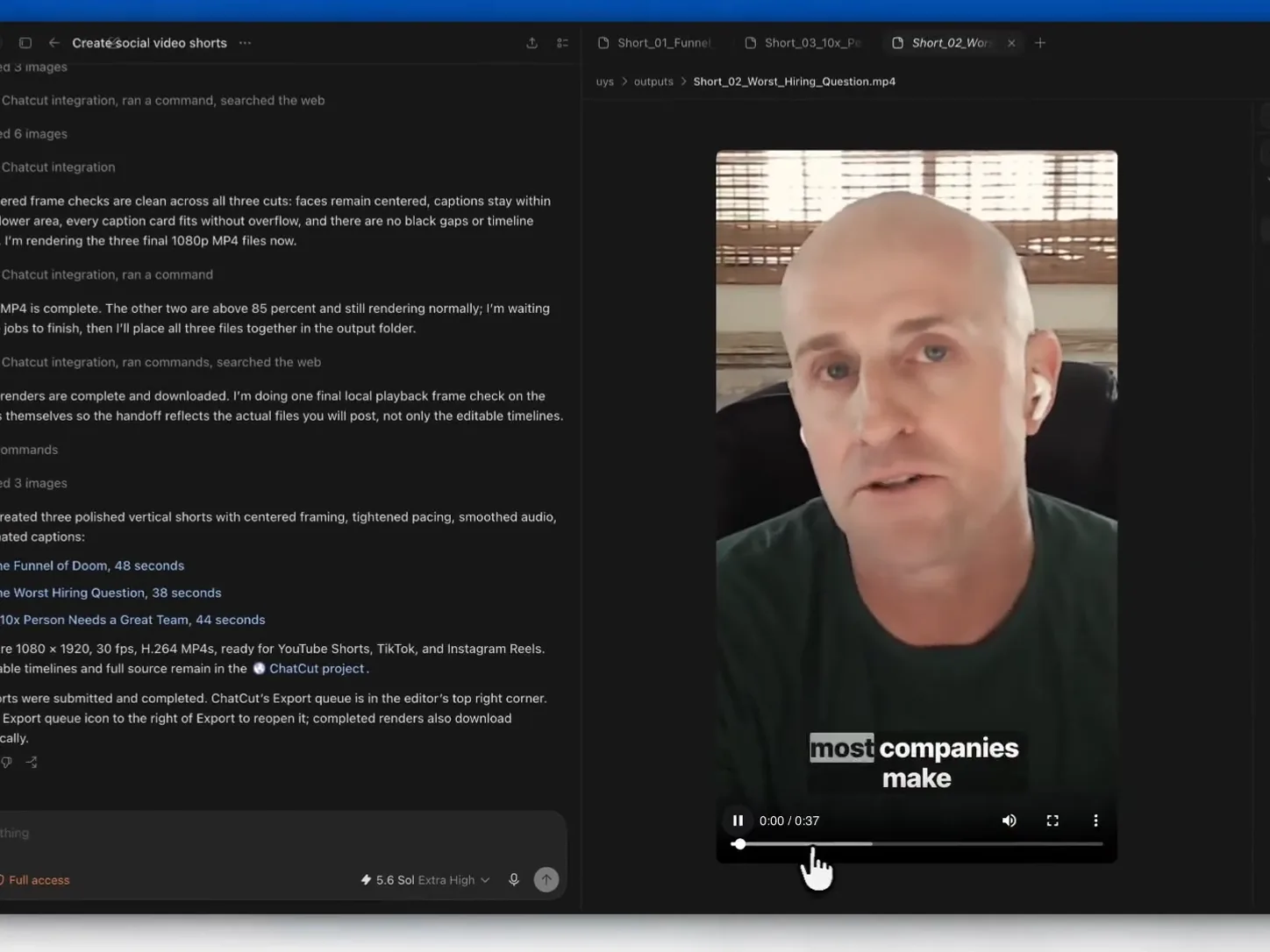
ChatCut’s Agent can work through a multi-step editing brief and leave the result available for review on an editable timeline. Its Agent Plugin is available for supported desktop apps, including Codex and Claude Code. Use the platform guide to choose between ChatCut Desktop, the web editor, and the plugin.
What AI Video Editing Software Can Do

The capabilities vary by platform, but here is what leading AI video editing tools handle today:
Auto-cut and smart trimming
AI-assisted trimming can suggest cuts around silences or repeated takes. Review the proposed cuts for meaning, pacing, and sentence boundaries before applying them across a long recording.
Auto-captions and subtitle generation
The AI transcribes speech and places accurately timed captions directly on the video. Most tools support multiple caption styles. However, AI captions should always be reviewed before publishing the video, especially for proper grammar and technical terminology.
Color grading
Most of the best AI video editing tools come with features to correct and fix color grading using digital LUTs. These LUTs fix exposure, white balance, and color profile of each clip. Results are clean and consistent for standard footage. Complex cinematic grading still benefits from manual adjustment.
B-roll matching
AI video editing software with a timeline editing feature lets you insert relevant b-roll footage from a connected asset library. With agentic editing, the video editor makes context-based suggestions and auto-inserts b-roll footage. This speeds up the most time-consuming part of long-form video production.
Audio enhancement and noise removal
AI noise removal can help reduce unwanted background sound. Compare a short passage before and after processing, and listen for changes to the voice, room tone, and consonants before using the setting across the edit.
Platform reformatting
AI automatically reframes and resizes a video for different aspect ratios, from a 16:9 YouTube video to a 9:16 Instagram Reel and a 1:1 LinkedIn post. The AI detects the focal point of each frame and adjusts the crop to fit your social media content requirements.
Text and logo overlay
Stylized text overlays, lower thirds, and logo placements can be applied by adding the text elements into the timeline or using custom prompts with an AI agent. In both cases, the AI video editor reduces time spent on branded video formatting.
AI Video Editing vs. Traditional Non-Linear Editing
AI assistance and non-linear editing can be part of the same workflow. An agent can make a first pass while you keep direct access to the clips, captions, and audio on a timeline. The controls available in the resulting project matter when you need to revise the edit.
When comparing ChatCut with Adobe Premiere Pro, DaVinci Resolve, or another editor, test the tasks your project needs:
| Requirement | What to verify in the workflow |
|---|---|
| Creative control | Can you revise individual cuts, captions, audio, and layers after the AI pass? |
| Editing time | How long do the first pass, corrections, and export take on your own footage? |
| Access | Does the editor support your operating system or desktop browser? |
| Export | Are the required aspect ratio, resolution, duration, and format available on your plan? |
| Cost | What do the subscription, generation credits, and export limits mean for this project? |
| Further editing | Can you make the remaining changes in the project, or does your finishing workflow require another tool? |
Use a short, representative project to check these requirements. Inspect the first pass, make a specific revision, and review an export before choosing a workflow for a larger production.
What to Look for in an AI Video Editor
The difference between a useful AI video editor and one that slows you down is usually a few key features. Here is what to evaluate before committing to a video editing tool.
- Editing approach support: Does it support prompt-based, transcript, and timeline editing, or only one? More options give you flexibility across content types.
- Agentic capabilities: Can the tool execute multi-step workflows without manual input at each stage? Agent mode separates basic AI editors from genuinely capable ones.
- Auto-captioning accuracy: Test it on a real clip with varied speech before relying on it for published content.
- Audio enhancement quality: Background noise removal quality varies significantly between platforms.
- Content repurposing tools: Does it support automatic reformatting for multiple platforms from a single upload?
- Output resolution: Some free-tier tools cap exports at 720p. Check the maximum before choosing a plan.
- Browser-based access: Desktop tools require installation and specific hardware. Browser video editors can be used and accessed from anywhere.
Best AI Video Editing Tools in 2026
AI video editing tools fall into two broad categories:
- Browser-based editors built for speed and accessibility
- Desktop NLE tools with AI features layered in for professional production work
The right choice depends on your content type, technical comfort level, and how much manual control you need over the final output.
For browser-based AI editing
- ChatCut supports prompt, transcript, and timeline editing in its web app and desktop apps for macOS and Windows. Its Free plan includes the core editor; Pro unlocks specific paid capabilities, and generation can also use credits. Check the current pricing and in-app Upgrade dialog for the offered price and credit tier.
- Descript suits transcript-based editing for podcasts and interviews.
- CapCut works well for short-form and mobile-first content.
Compare each tool’s current plan and export limits against the workflow you need.
For professional productions
- Adobe Premiere Pro and DaVinci Resolve remain the standard.
- Both now integrate AI features such as automated color correction, noise removal, and caption generation directly into their traditional timelines. These features improve the manual control that high-end production work requires.
Most serious workflows today use both categories in combination: AI tools for first-pass editing and reformatting, and a full NLE for finishing.
Limitations and Common Mistakes of AI Video Editing
The biggest misconception about AI video editing tools is that automation eliminates the need for human judgement. Being aware of the limitations of these AI tools can help editors use them more effectively without running into costly editing errors.
Limitations
Limited creative control for complex sequences
AI tools are reliable for structured, repeatable tasks. For narrative editing where pacing and emotional timing matter, they require significant human oversight. The AI cannot interpret subtext or intent from footage.
Data and privacy considerations
Uploading footage to a cloud-based AI editor means your video is processed on external servers. For client work or sensitive content, review the platform’s data handling and privacy policy before uploading.
Output depends on input quality
Start with the original source files where possible. Check any enhancement against the source so that unwanted noise or compression is reduced without losing details you need in the edit.
Color grading limitations
AI auto-correction produces clean, balanced results for standard footage. For cinematic grading with a specific visual style, the output rarely matches what a colorist achieves manually in DaVinci Resolve or Premiere.
Common Mistakes
Skipping prompt iteration
Treat the first output as a draft. Review the actual cuts, captions, and audio, then request a specific revision, such as correcting a name or keeping a sentence that was removed. Review the revised result before exporting.
Not reviewing AI captions
Auto-generated captions are highly accurate for clear audio but regularly mishandle proper nouns, brand names, technical terms, and non-standard pronunciation. Always review before publishing.
Using low-resolution input
Start with the highest-quality source available. Some tools offer enhancement or upscaling; Adobe Firefly’s video upscaling documentation, for example, describes enhancement settings and output up to 4K. Compare the result with the source and check that added detail suits the shot.
How to Edit Video with AI on ChatCut
ChatCut combines an AI agent, transcript editing, and direct timeline controls. Use it on macOS, Windows, or in a desktop browser; the Agent Plugin lets a supported desktop agent work on the same editable project.
Watch the 36-second editable-shorts recording for a visible example of the conversation, transcript, vertical preview, and clip timelines during caption revisions. This silent recording shows the June 2026 interface and does not measure the full processing time.
Step 1: Upload Your Video
Go to ChatCut and upload your video file. MP4 and MOV are supported. The editor also comes with a built-in AI video generator, which means you can create, test, and edit videos on the same platform.
Step 2: Choose Your Editing Approach
ChatCut offers multiple video editing modes: prompt-based agentic editing, transcript editing, and timeline editing. Choose the editing approach depending on your content type. For quick edits and multi-step workflows, writing AI video prompts for the agent is the fastest path.
For narration-based videos, transcript editing gives you more precision over what stays in and what gets cut. For final tweaks and minor fixes, timeline editing lets you refine your video manually.
Step 3: Add Elements
On ChatCut, you can access a comprehensive library of motion graphics, sound effects, transitions, LUTs, and more. Try different caption styles, isolate voice, or enhance audio with transitions.
Step 4: Refine with Timeline Controls
Use the timeline editing feature for manual adjustments such as splitting and rearranging the frames, fixing captions, tightening pacing, or correcting anything the prompt did not handle exactly as intended.
Step 5: Export and Share
Select your aspect ratio, resolution, and export format. ChatCut supports platform-specific formatting, so you can export the same edit in multiple formats for YouTube, Instagram, and LinkedIn in one session.
Ready to Edit Videos with ChatCut?
AI video editing has removed the technical barrier to producing clean, professional video content. Tasks that once required dedicated software, specific hardware, and post-production skills are now accessible to anyone with a browser and a video file.
For creators, marketers, and teams producing high volumes of video content, AI editing is now a practical part of the workflow rather than an experimental add-on.
ChatCut brings prompt-based requests, transcript editing, generated media, and an editable timeline into one project. Choose Desktop, the web app, or the Agent Plugin, then review the result on your own footage.