
Synced from the ChatCut Skill catalog · Updated October 16, 2026
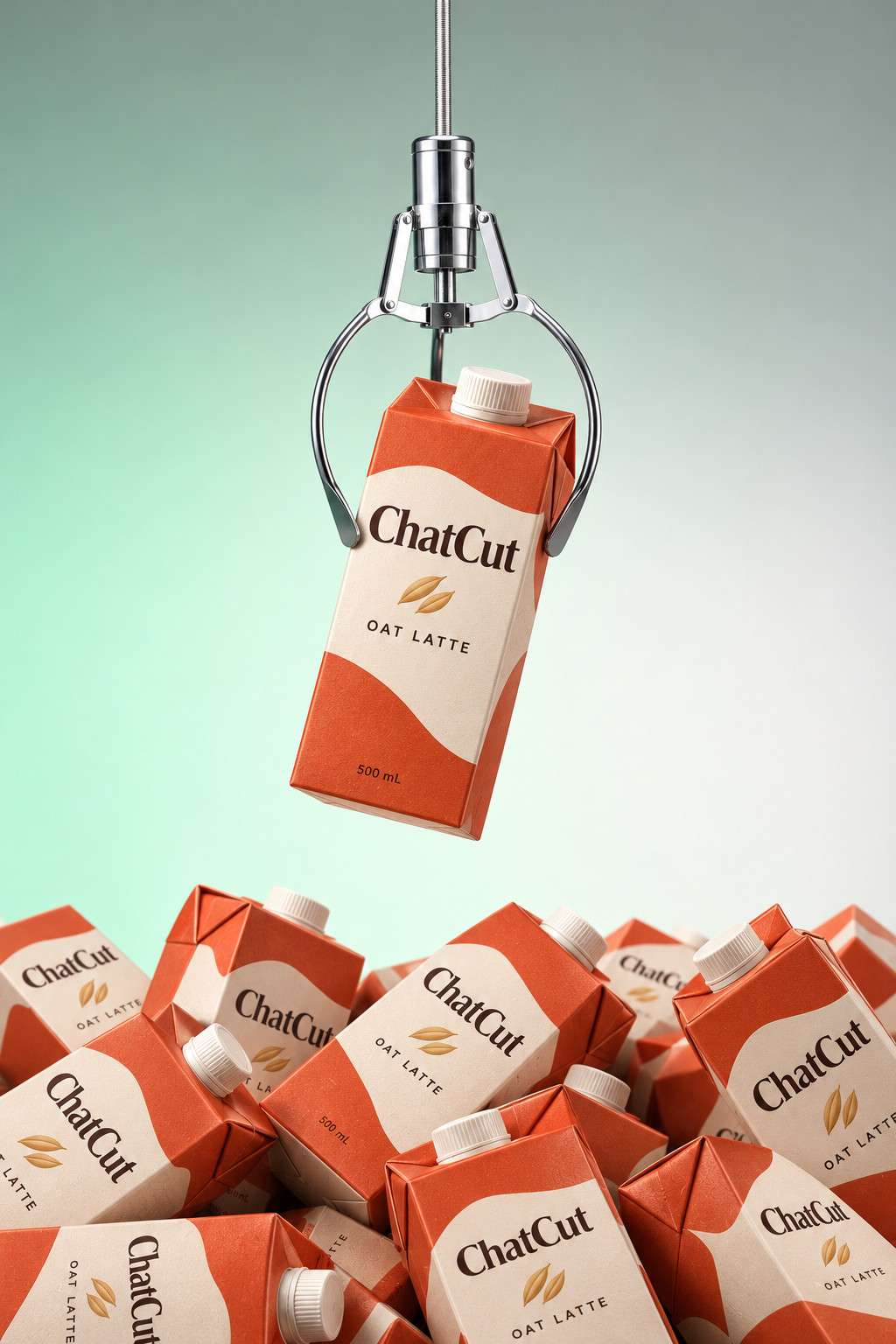
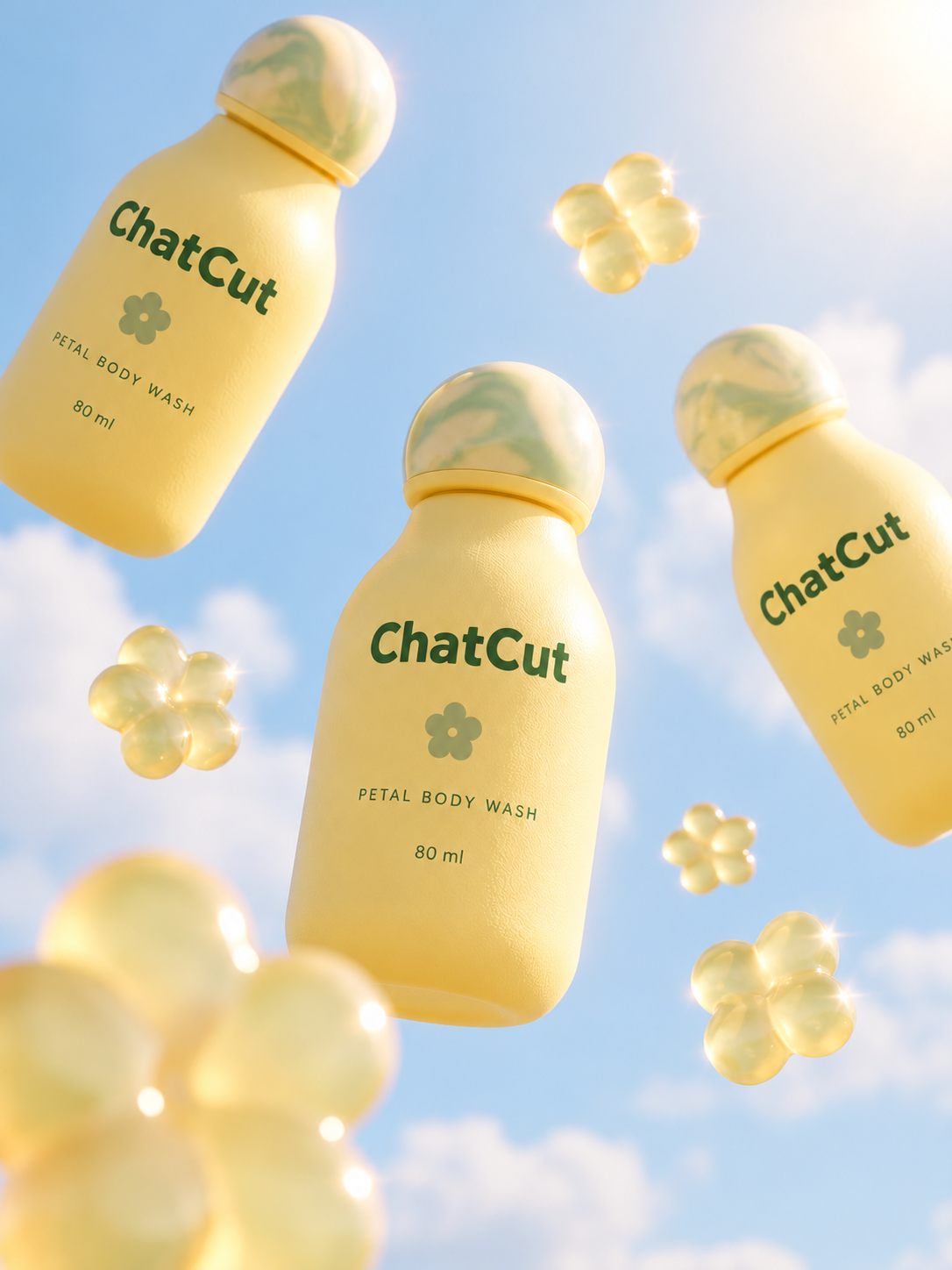
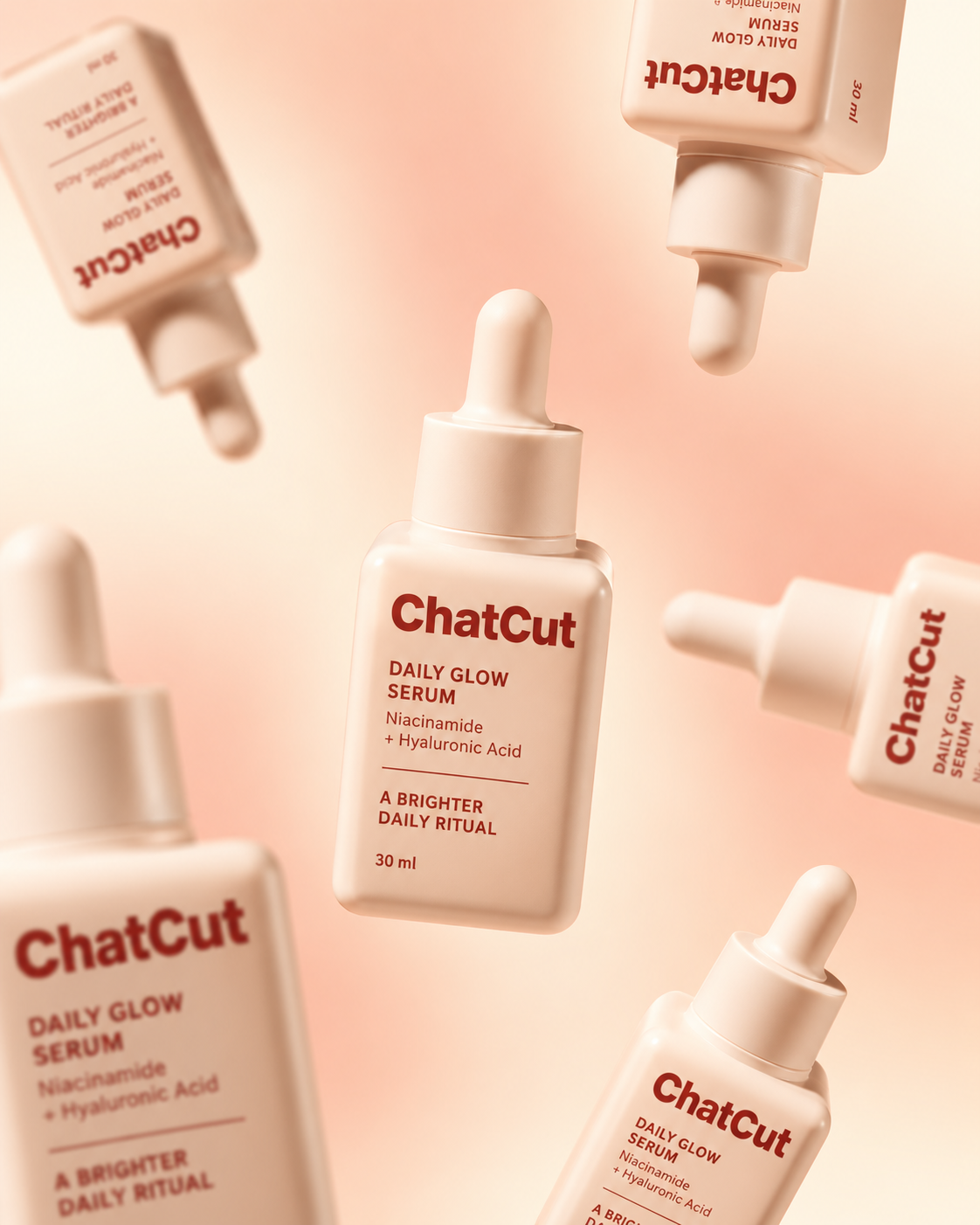
For creative hero images of drinks, fragrances and other products. Upload a product photo and optionally add visual requirements to create dynamic photography with liquid splashes, floating products or suspended ingredients. 4 published styles are available.
What this Skill does
Use when the user selects Hoisted Hero from Splash & float to create an image with their own content.
Use this Skill when
Use when the user selects Splash & float and chooses one of its 4 examples.
What the package contains
- 3 workflow steps
- The ordered procedure the agent works through, from the material you hand it to the finished timeline.
- 2 operating rules
- Constraints it holds to along the way, so the result stays predictable instead of drifting mid-edit.
- 2 quality checks
- What it verifies before calling the work done — the pass you would otherwise run yourself.
- 2 defined inputs
- The footage, references, and decisions this workflow expects from you up front.
How to run it
- Start in the ChatCut project you want to work on.
- Open the AI composer's Skills menu and find Splash & float. Choose the workflow, then check the attached Skill in your prompt.
- Add the footage or references for this job and explain your intended result. Send the request when those inputs are ready.
For selection and reuse, see the Skills guide.
Changelog
Updated October 16, 2026 — synced from the ChatCut Skill catalog. No revisions recorded before this one.
Preview
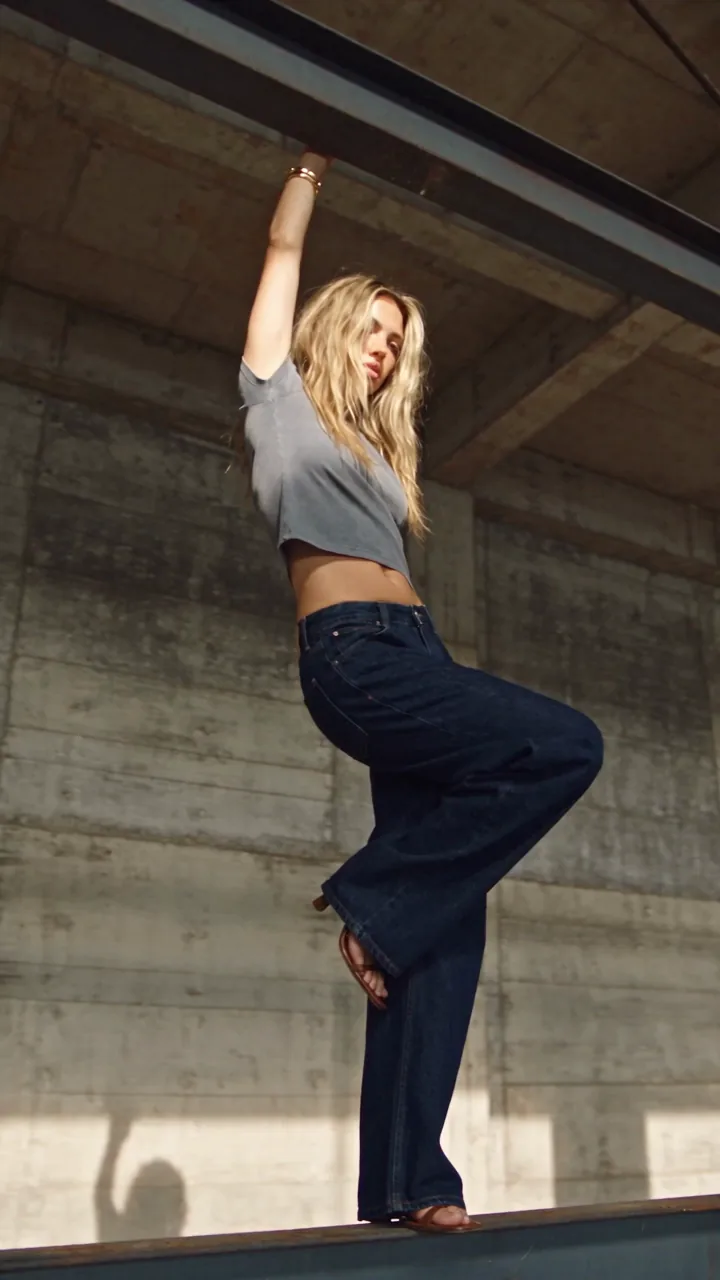
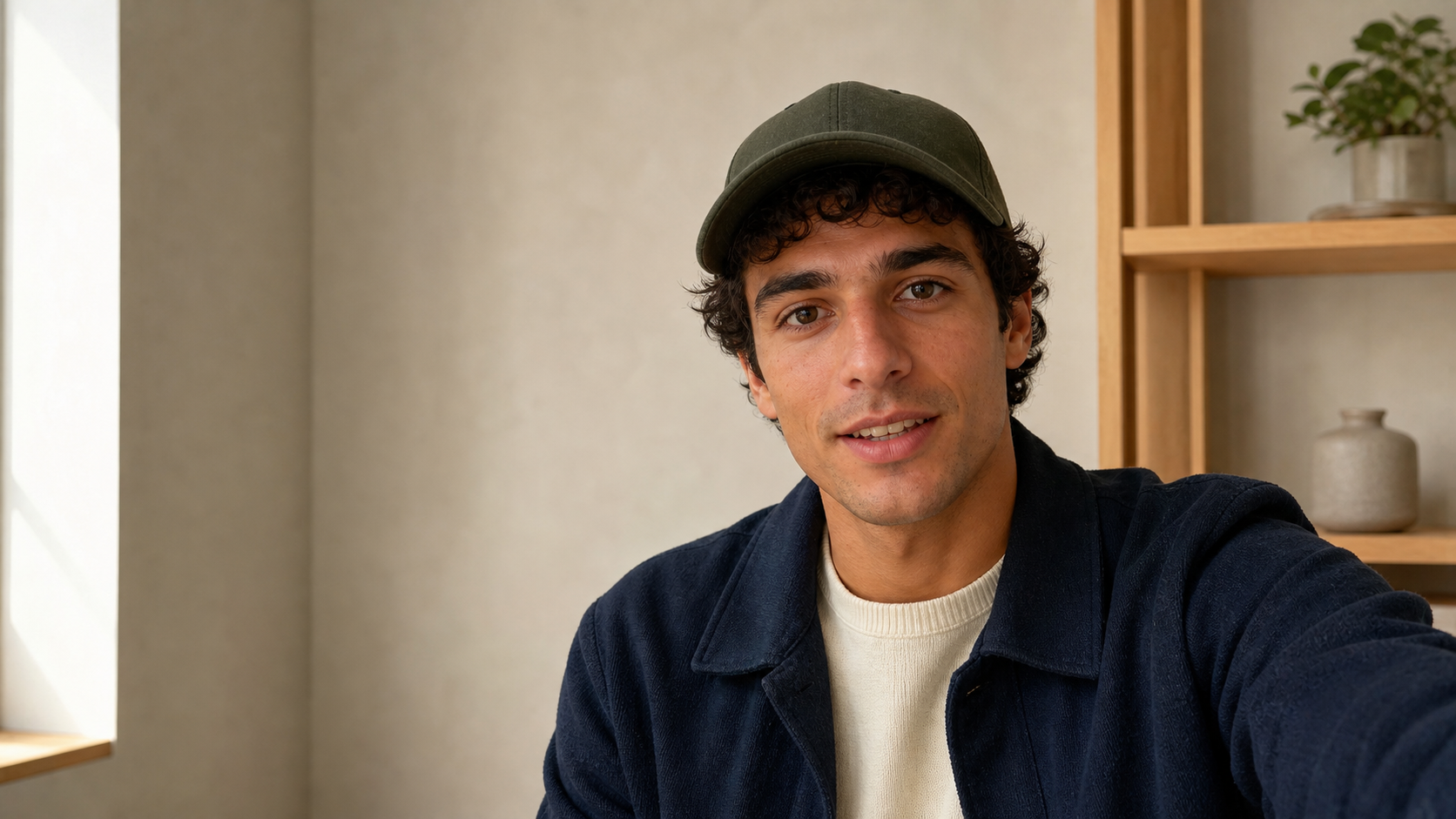
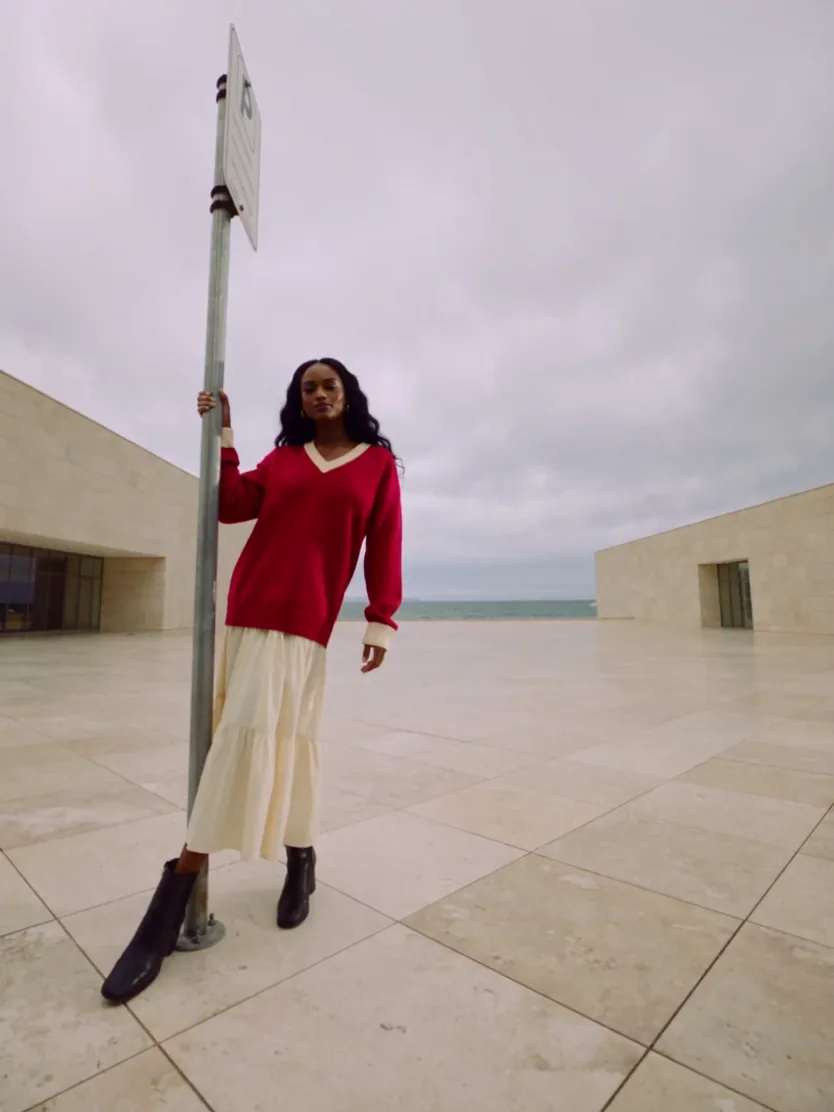
4 catalog media 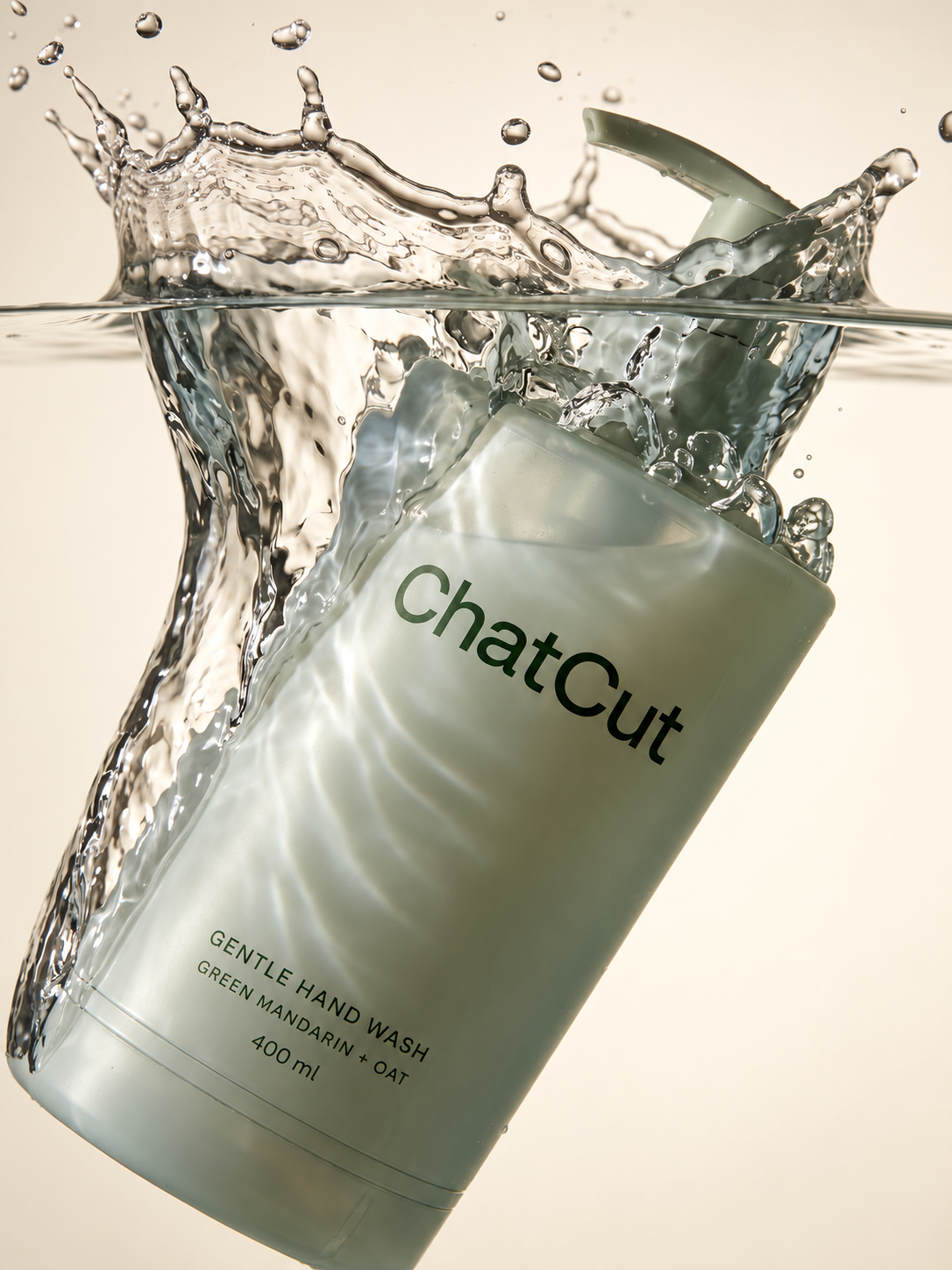



Commenting is not open yet. Until it is, tell us how you use this Skill in Discord.